Subcategory 1
Salads
Greek Salad
Tomato, feta cheese, cucumber, spinach, lemon, pepper, red pepper
$10,40
Burger
Tomato, feta cheese, cucumber, spinach, lemon, pepper, red pepper
$10,40

Blog
A smarter, safer, and more efficient way to serve today's tech-savvy diners.
Ever created the perfect "About Us" page, only to realize it's nowhere to be found in your website's main navigation? This common frustration happens when the menu is not updated after creating new pages.
Your website menu is the main tour guide for visitors. In practice, it's a separate tool that needs its own updates, even after your content pages are done.
If you've added links, clicked save, and still saw no change on the live site, this is usually why: menu structure and display location are two separate settings.
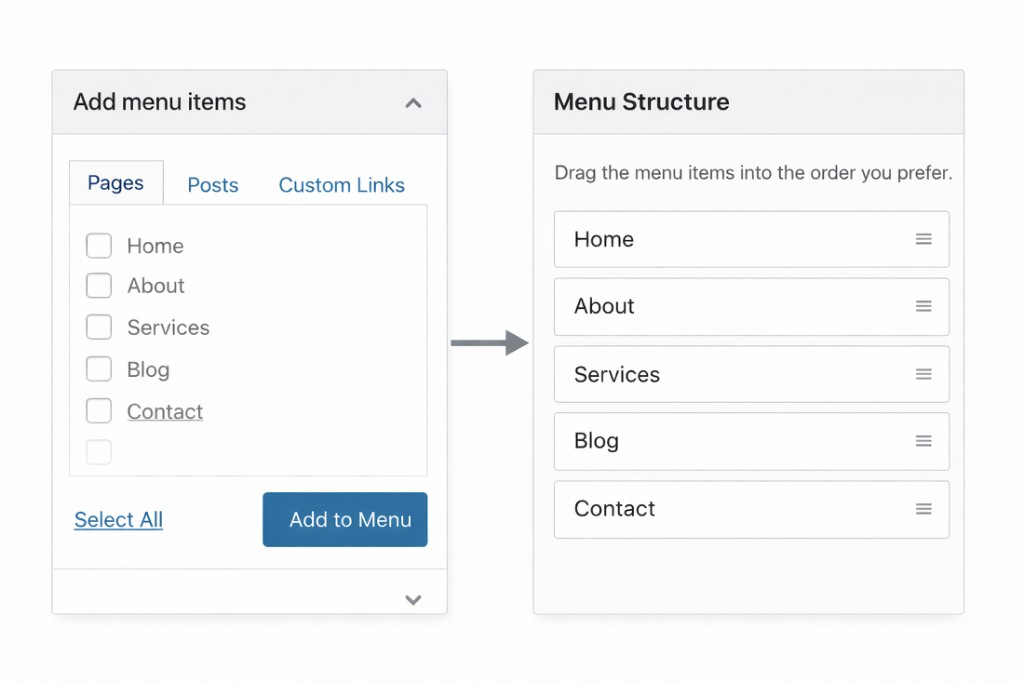
Think of the menu as a framed picture, and theme locations as hooks on the wall. You can build a perfect menu, but it remains invisible until attached to one of your theme's available hooks.
In Menu Settings, check location options such as Primary Navigation or Footer Menu. This is what makes your updates go live.
You are the architect of your site's navigation.
OVA tip: build the menu first, then assign it to the correct theme location.
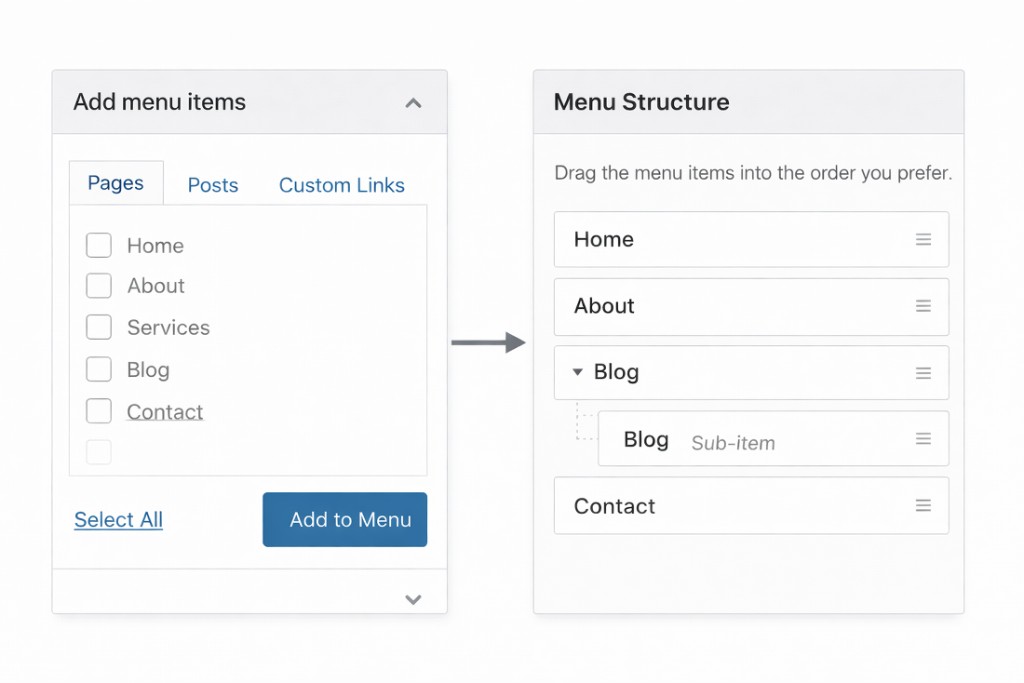
Once you apply this workflow, you can add, remove, and reorganize links confidently so visitors always find your most important pages.
Ready to get started?
Turn your menu into a sales engine with instant menu updates, QR ordering, and smart analytics.